Uninstall Guide
Removing a Solution
Solutions in OneStream can significantly enhance your development experience by adding value via extensibility. However, there are several reasons why you might want to uninstall a solution. Compatibility issues are one factor, as certain solutions may conflict with updates to OneStream, leading to errors or unexpected behavior. Additionally, different applications might require different sets of solutions, so uninstalling unnecessary ones can help keep your development environment clean and focused. Lastly, regularly reviewing and uninstalling unused or outdated solutions can help maintain the security of your development environment. By periodically managing your solutions, you can ensure that OneStream remains efficient and tailored to your specific needs.
How to Uninstall
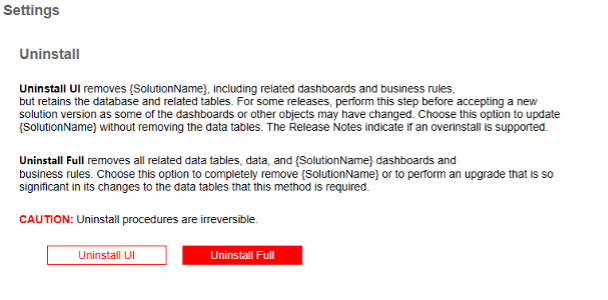
You will want to have a settings page that has descriptions of Uninstall Full, Uninstall UI, as well as buttons that a user can select for both options. If your solution does not have database tables, then you may only want to have one button just for Uninstall UI. Here’s what an end user would do to complete the process:
- Click Application > Solution’s Settings Page > Uninstall
- There are two uninstall options:
- Uninstall UI removes the solution, including related dashboards and business rules but leaves the database and related tables in place. For some releases, this step should be performed before accepting any new version of the solution since some of the dashboards or other objects may have been modified.
- Uninstall Full removes all the related data tables, all data, the solution dashboards, and business rules. Choose this option to completely remove the solution or to perform an upgrade that significantly changes the data tables.
Uninstall procedures are irreversible.
Here’s an example of how an uninstall dashboard would look from your settings page.
Behind the Scenes: Uninstall Routine
When you uninstall a solution, OneStream runs several methods behind the scenes to ensure the solution is completely removed. These methods are executed based on which uninstall type was selected to ensure that all components of the solution are properly uninstalled. Here are the methods that are called during the Uninstall Routine:
DeleteWorkspace()
Deleting a workspace will delete all nested maintenance units, dashboard groups, components, data adapters, parameters, files, and assemblies.
private static bool DeleteWorkspace(SessionInfo si)
{
    // Delete the workspace associated with this solution
    Guid workspaceId = Guid.Empty;
    // Get the workspace to delete
    workspaceId = BRApi.Dashboards.Workspaces.GetWorkspaceIDFromName(si, false, "{SolutionName}");
    if (!workspaceId.Equals(Guid.Empty))
        // Delete workspace and all child items
        BRApi.Dashboards.Workspaces.DeleteWorkspace(si, false, workspaceId, true);
    return true;
}
DeleteProfile()
Deleting a profile will remove the solution’s UI from OnePlace.
private static bool DeleteProfile(SessionInfo si, DashboardExtenderArgs args)
{
    {
        // Delete Solution Dashboard Profile
        using DbConnInfo dbConnApp = BRApi.Database.CreateApplicationDbConnInfo(si);
        using DbConnInfo dbConnFW = BRApi.Database.CreateFrameworkDbConnInfo(si);
        DashboardProfile dashProfile = null;
        dashProfile = EngineDashboardProfiles.GetProfile(dbConnApp, "{SolutionName}");
        if (dashProfile != null)
        {
            SecurityHelperWcf.ValidateDelete(dbConnFW, dbConnApp, DashboardHelperWcf.GetRoleType(true), dashProfile, throwOnError: true);
            EngineDashboardProfiles.DeleteProfile(dbConnApp, dashProfile.UniqueID);
        }
        return true;
    }
}
DropSolutionTables()
Dropping solution tables will drop all the Solution’s related database tables. This requires a DROP TABLE SQL script which will be described in the next section.
private static bool DropSolutionTables(SessionInfo si, DashboardExtenderArgs args)
{
    // Open the DDL script used to create the custom tables required for this solution
    if (BRApi.Security.Authorization.IsUserInAdminGroup(si))
    {
        // Get the SQL from the TableDrop file in the dashboard
        string setupFileName = "tableDrop.txt";
        DashboardFileResource fileResource = BRApi.Dashboards.FileResources.GetFileResource(si, false,
        args.PrimaryDashboard.WorkspaceID, setupFileName);
        if (fileResource == null)
        {
            returnMessage.AppendLine("Table Drop File (" + setupFileName + ") is missing or invalid.");
            return false;
        }
        else
        {
            // Define string to hold SQL table drop script
            string sqlScript = Encoding.UTF8.GetString(fileResource.FileBytes);
            // Create connection to application database
            using DbConnInfo dbConnApp = BRApi.Database.CreateApplicationDbConnInfo(si);
            try
            {
                // Drop the dashboard Table(s) from the defined script
                BRApi.Database.ExecuteActionQuery(dbConnApp, sqlScript, false, true);

                return true;
            }
            catch
            {
                return false;
            }
        }
    }
    else
        return false;
}
UninstallSolution()
When called this method will uninstall the UI, Business Rules, and drop all the Solution’s related database tables. It calls a combination of the previous 3 methods based on the uninstall type. For example, if a user selects Uninstall UI (uninstall type does not equal “Full”), then only the DeleteProfile and DeleteWorkspace methods are invoked.
private static XFSelectionChangedTaskResult UninstallSolution(SessionInfo si, DashboardExtenderArgs args)
{
    // Uninstall UI, BRs and Drop Solution Tables
    Guid workspaceId = BRApi.Dashboards.Workspaces.GetWorkspaceIDFromName(si, false, "{SolutionName}");
    string solutionCode = BRApi.Dashboards.Parameters.GetLiteralParameterValue(si, false, workspaceId,
    "{SolutionCode}");
    XFSelectionChangedTaskResult selectionChangedTaskResult = new();
    System.Text.StringBuilder message = new();
    bool tablesDropped = false;

    if (BRApi.Security.Authorization.IsUserInAdminGroup(si))
    {
        // Uninstall the Solution
        string uninstallType = args.NameValuePairs.XFGetValue("Type", "UI");

        // Evaluate the uninstall type
        if (uninstallType.XFEqualsIgnoreCase("Full"))
        {
            // Drop all associated database tables
            tablesDropped = DropSolutionTables(si, args, ref message);
        }

        // Delete Solution Workspace, all child items of that Workspace and the Dashboard Profile
        if (DeleteProfile(si, args) && DeleteWorkspace(si))
        {
            // Log the Uninstall
            BRApi.ErrorLog.LogMessage(si, $"Solution ({solutionCode}) was uninstalled [Type:
            {uninstallType}]{Environment.NewLine}");
        }
        else
        {
            BRApi.ErrorLog.LogMessage(si, "Error: Profile and/or Workspace could NOT be deleted.");
        }
    }
    else
        BRApi.ErrorLog.LogMessage(si, "Security Error: Adminstration Rights Required to Execute Uninstall.");

    // Set the return value
    selectionChangedTaskResult.IsOK = true;
    selectionChangedTaskResult.ShowMessageBox = true;
    selectionChangedTaskResult.Message = message.ToString();
    return selectionChangedTaskResult;
}
Drop Table Script
A DROP TABLE script in SQL is used to delete an entire table from a database, including all its data and structure. The goal is to remove the table permanently, which can be useful for cleaning up unused tables or resetting a database. However, it's important to use this command with caution, as it cannot be undone and all data in the table will be lost.
When Uninstall Full is selected, the DROP TABLE script is run. This script will be a SQL command with the tables to dop stored in a TXT file.
USE [YourDatabaseName];

DROP TABLE [YourSchemaName].[TableName1];
DROP TABLE [YourSchemaName].[TableName2];
DROP TABLE [YourSchemaName].[TableName3];
Legacy Business Rules
In the newer versions of the OneStream platform, business logic is handled by the solution’s assemblies in the current workspace. If you are running a OneStream platform version prior to 8.x, then your solution may contain legacy business rules, which you likely will want to remove from the application on uninstall. This requires an additional method.
DropSolutionBRs()
When called this method will uninstall the legacy business rules from the application.
private void DropSolutionBRs(SessionInfo si)
{
    // Delete business rules associated with this app
    var dsbBusinessRules = new Dictionary<string, BusinessRuleType>()
    {
        { "{DashboardExtenderBRName}", BusinessRuleType.DashboardExtender },
        { "{DashboardStringFunctionBRName}", BusinessRuleType.DashboardStringFunction },
        { "{DashboardDataSetBRName}", BusinessRuleType.DashboardDataSet },
    };

    if (BRApi.Security.Authorization.IsUserInAdminGroup(si))
    {
        var frameworkObject = new Framework();
        // Get/Delete Dashboard Business Rules
        foreach (KeyValuePair<string, BusinessRuleType> br in dsbBusinessRules)
        {
            var brInfo = frameworkObject.GetBusinessRule(si, false, br.Value, br.Key);
            if (brInfo != null)
            {
                frameworkObject.DeleteBusinessRule(si, false, br.Value, br.Key);
            }
        }
    }
    else
    {
        BRApi.ErrorLog.LogError(si, "Security Error: Administration Rights Required to Execute Uninstall.");
    }
}
Important Considerations
Be sure to extract your solutions as a zip from OneStream so that you can have the current state as a backup before you uninstall. If you uninstall a solution without having an extract, you will lose the current state and any changes that were made.
- Click Application > Tools > Load/Extract
- Select the Extract tab
- From the File Type combo box, select XF Project
- Click the ellipsis button and a file explorer dialog will appear
- Navigate to and select the xfProj file for your solution, then hit Open
- Check the box for Extract To Zip
- Click Extract and save the zip to a destination folder